If you want ChatGPT, Gemini and Perplexity to match your products to what shoppers ask for, fill in your WooCommerce product attributes the same way on every product. Use global attributes for things like size, color and material, give each product a value for every attribute that applies, and keep the values consistent. Then add GTINs and tidy your categories.
Nobody outside the assistants knows exactly how each one weighs attributes. That is unclear, and anyone who gives you an exact ranking is guessing. What is clear is the basic logic. A shopper asks for "a waterproof jacket in green, size medium." An assistant can only match that question to your product if the product data says it is waterproof, green and medium. If that information sits only in a photo, or in a sentence nobody wrote, there is nothing to match.
Which attributes are worth filling in
Start with the facts a shopper would put in a question. For most stores that means:
- Size
- Color
- Material
- Brand
- Any measurement or capacity that buyers compare, such as weight, dimensions or volume
Add anything specific to your products. If buyers of your kind of product ask about it before they buy, it belongs in an attribute. If they never ask, skip it. A short, complete set of attributes beats a long, half-empty one.
Set up global attributes in WooCommerce
WooCommerce lets you create an attribute once and reuse it across products. These are global attributes. They keep your values consistent, which is the main reason to use them. A custom attribute typed into a single product is easy to misspell and easy to name differently from the next product.
- In your WordPress admin, go to Products > Attributes.
- Add a name, such as Color or Material. Save it.
- Click "Configure terms" next to the attribute and add each value once: Green, Navy, Cotton, Leather and so on.
- Open a product. In the Product data box, go to the Attributes tab.
- Pick your global attribute from the dropdown, choose the values that apply, and save.
- Tick "Visible on the product page" so the information also shows to shoppers.
- If the attribute is used for variations, tick "Used for variations" and set up each variation.
Decide your spelling and format before you add terms. Pick "Green" or "green", not both. Pick "XL" or "Extra Large", not both. Use one unit style for measurements. Fixing this later means editing every product that uses the old value.
Keep values consistent
Consistency is where most stores slip. The same material listed as "Cotton", "100% cotton" and "cotton blend" on three products gives an assistant three different facts. A few habits help:
- Keep one term per real value. Merge duplicates in the terms list.
- Put the measurement in the attribute, and the explanation in the description.
- Fill in every product, not only the newest ones. A half-filled catalog is hard to match against.
- Do not stuff several facts into one value. "Green, waterproof, medium" belongs in three places.
Add the other basics next to attributes
Attributes are one part of what assistants read. Three other fixes tend to matter alongside them.
GTINs. These are the barcode numbers (UPC, EAN, ISBN) that identify a specific product. They let an assistant tell that your listing is the same item as one elsewhere. Add them wherever you have them.
Categories. Put each product in the category a shopper would expect, and avoid leaving everything in "Uncategorized." Clear categories give context to attributes.
Descriptions and structured data. A written description should say what the product is, who it suits and what it is made of, in plain sentences. Structured data is the machine-readable version of your product facts. WooCommerce adds some on its own, and your theme or an SEO plugin may add more. For more on what gets missed, see what AI shopping assistants can't read in your product data.
Find the gaps without checking every product
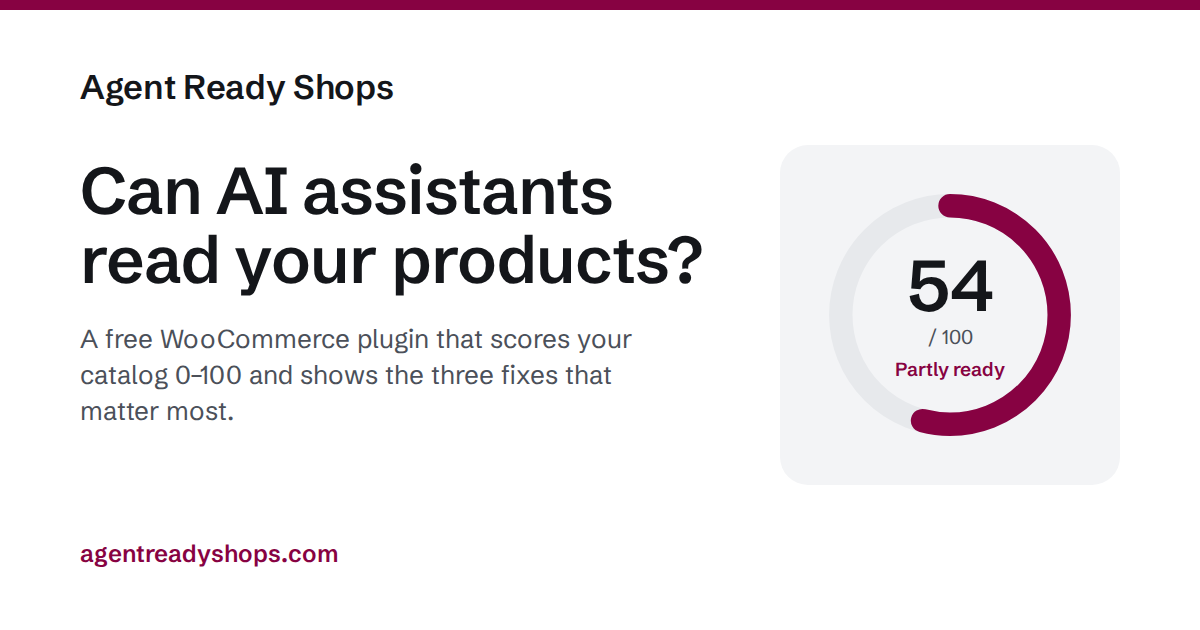
Checking attributes by hand across a large catalog takes a long time. Agent Ready Shops is a free WordPress plugin that scores your store from 0 to 100 on what ChatGPT, Gemini and Perplexity rely on. For WooCommerce it runs fourteen checks, and attributes are among them, alongside identifiers, descriptions and structured data.
It looks at up to 100 published products, favoring your newest and best sellers, and shows the three fixes that matter most. The audit runs inside your own WordPress site, usually in under a minute. It needs no account and sends nothing off your site.
To install it, go to Plugins > Add New > Upload Plugin, choose the zip, then Activate. Run it from WooCommerce > Agent Ready Shops.
There is one optional extra, an AI shopper test. It uses your own Anthropic API key, and it shows exactly what it would send before you click. Nothing leaves your site unless you choose to run it.
One more point: blocking AI training bots such as GPTBot, ClaudeBot and Google-Extended is your choice, and it costs no points in the score.
How many sales come through AI assistants today is unclear, so this is not a promise of results. Complete attributes also help shoppers on your own store, who filter and compare by them. That makes the work worth doing either way. Attributes are one of the audit's 14 checks, and they flow into any product feed you build: see the free ChatGPT feed plugins for WooCommerce, compared.
If you run a Shopify store instead, check your Shopify store with the free audit there. It needs no install and no sign-in.
Download the free plugin and see your own score. It is free, needs no account, and runs on your own site.