A GTIN is the number under a product's barcode (a UPC, EAN or ISBN is a type of GTIN). You usually find it on the packaging or in your supplier's product data sheet, and you enter it on the product's edit screen in WooCommerce. Add it to every product that has one, and keep your SKU and MPN in their own fields.
Why bother? An AI shopping assistant has to decide whether your listing is the same item as one it has seen elsewhere. A name and a photo can be ambiguous. A GTIN is not. It is one of the things ChatGPT, Gemini and Perplexity rely on, along with attributes, descriptions and structured data. Nobody can say yet how many sales come through these assistants, and it is unclear. So this is not a promise of more sales. It is about making sure your products can be read correctly.
GTIN, MPN and SKU: three different numbers
People mix these up, and so do product feeds. Here is the difference.
- GTIN: a global number printed as a barcode. The same product carries the same GTIN in every store that sells it.
- MPN: the manufacturer's own part number. It identifies the item within that maker's range.
- SKU: your own internal code. It means something only inside your store.
A SKU is not a substitute for a GTIN. If your SKU field holds the barcode number, that is fine, but it is better to keep the barcode in a field meant for it.
Where to find a GTIN
Start with the easiest sources and work down.
- The packaging. Look for the number printed under the barcode. Most retail products show 12 or 13 digits.
- Your supplier or wholesaler. Ask for a spreadsheet of products with their barcodes. Many already keep one.
- The manufacturer's site or catalog. Brand sites and trade catalogs often list barcodes next to part numbers.
- Your old purchase orders and stock sheets. Barcodes are often there from when you first scanned stock in.
If you make your own products and sell under your own brand, you may have no GTIN at all. In that case you get them from GS1, the organization that issues them: in the US, GS1 US sells single GTINs for a few items, or licenses a GS1 Company Prefix that covers many. Check their current terms before you pay, and do not buy numbers from a reseller without confirming where they came from. If an item has no GTIN and never will (a one-off handmade piece, for example), leave the field empty. A made-up number is worse than a blank.
Where to enter identifiers in WooCommerce
Open a product and go to the Inventory tab in the product data box. The SKU field is there. Since WooCommerce 9.2 there is also a "GTIN, UPC, EAN, or ISBN" field just below it. If you don't see it, check which version you run and update WooCommerce.
For variable products, each variation has its own SKU and, where the field exists, its own GTIN. A red T-shirt in size small has a different barcode from the same shirt in large, so open each variation and fill it in.
WooCommerce does not have a standard field for MPN. Two common ways to store it are a product attribute named "MPN" or a field added by a plugin. Whichever you pick, use it on every product so the data stays consistent.
For a large catalog, the product CSV import and export tool is faster than editing one product at a time. Export your products, add the barcodes in a spreadsheet next to the SKUs, and import the file with "Update existing products" ticked, so rows match your products by ID or SKU. On the column mapping screen, pick "GTIN, UPC, EAN, or ISBN" for the barcode column, or it won't be imported. Try it on a few rows first and keep a backup.
Format mistakes that cause trouble
- Leading zeros dropped. Spreadsheets love to turn 012345678905 into 12345678905. Format the column as text before you paste.
- Spaces or dashes inside the number. Digits only.
- The wrong length. Valid GTINs have 8, 12, 13 or 14 digits.
- The same GTIN on different products. Each distinct product or variation needs its own.
Find the gaps across your whole catalog
Checking products one by one doesn't scale. Agent Ready Shops is a free WordPress plugin that scores your WooCommerce store from 0 to 100 on what AI assistants rely on, and identifiers are one of the things it looks at. It runs 14 checks for WooCommerce, inside your own WordPress site, usually in under a minute. It looks at up to 100 published products, favoring the newest and best sellers, and shows the three fixes that matter most.
If missing GTINs are your biggest problem, that is what you will see first. There is no account, and the audit sends nothing off your site. The only optional step that can send data out is the AI shopper test, which uses your own Anthropic API key and shows what it would send before you click.
To run it, go to Plugins > Add New > Upload Plugin, choose the zip and activate it. Then open WooCommerce > Agent Ready Shops.
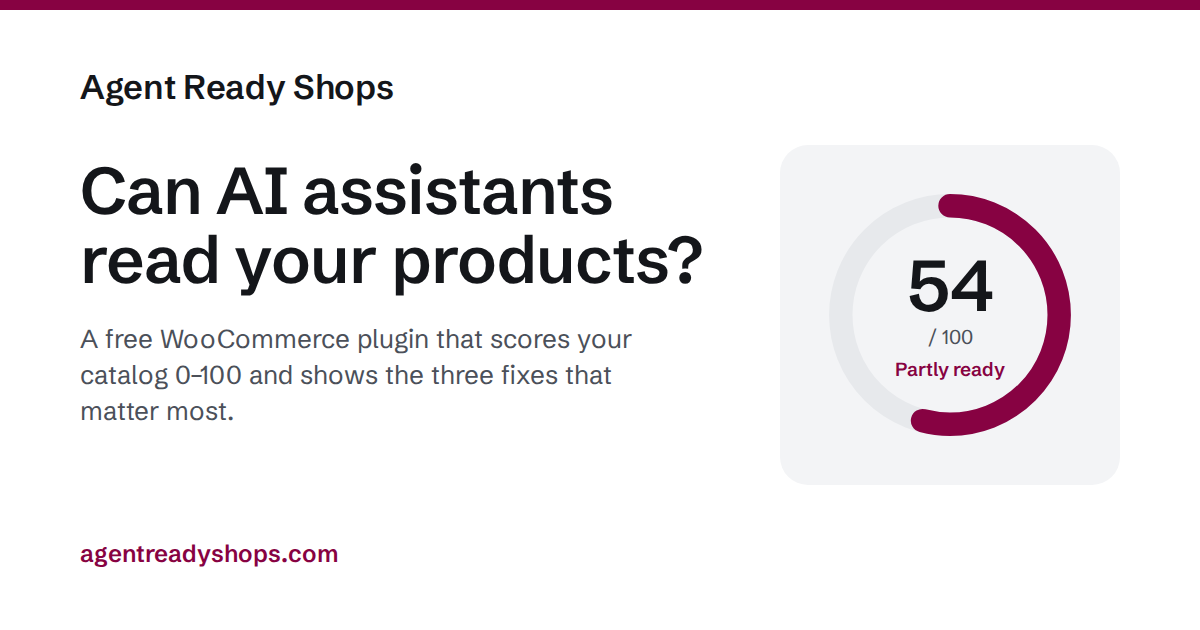
Here is what a report looks like. This sample (54 out of 100) is illustrative, not real data.
Identifiers are only part of the picture. For the rest, see what AI shopping assistants can't read in your product data.
A simple order of work
- Run the audit and note how many products lack a GTIN.
- Fix your best sellers first, from packaging or supplier sheets.
- Fill in the rest in bulk with a CSV import.
- Run the audit again to see what changed.
If you sell on Shopify instead, the plugin does not run there, but you can check your Shopify store with a free audit from its address, with nothing to install.
Download the free plugin and see your own score. It is free, needs no account and runs on your own site.